
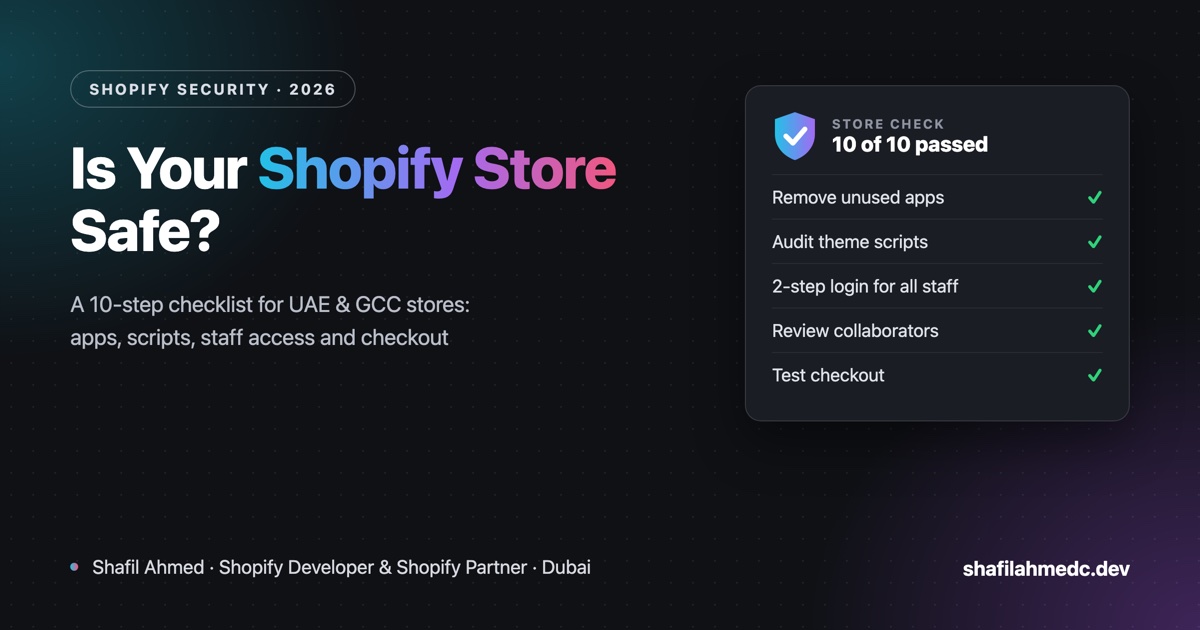
Two security stories hit online stores this autumn, and both came through code that store owners didn't write themselves:
- The Optimizely hack (16 November 2026): attackers injected malicious JavaScript into Optimizely Web projects. Researchers found 188 infected scripts belonging to 178 organizations, including large names such as the BBC, CNN and Zoom. The code targeted payment card details and cryptocurrency transfers. Optimizely says it removed the code, revoked tokens and notified affected customers (Help Net Security, SecurityWeek).
- Shopify checkout hijacks (from about 10 October 2026): some stores showed shoppers a fake checkout that looked almost identical to the real one and collected card details. Agencies traced it to compromised third-party apps, including Selleasy, which was delisted. Shopify then removed hundreds of apps from the App Store, although not all of them for security reasons.
Shopify's own platform wasn't reported as breached in either case. The risk sits in the apps, scripts and accounts you add to your store. The good news: that part is in your control. If you want someone to check your store for you, I do this as a Shopify Partner in Dubai.
Why third-party code is the weak spot
Every app, tracking pixel, A/B testing tool and chat widget runs code on your store. If one of those companies is compromised, the attacker's code runs on your store too, and your customers trust it because it's on your domain. A typical UAE store has 10 to 30 apps, plus Meta, TikTok, Snapchat and Google tags. Each one is a door.
10-step Shopify security checklist
- Test your checkout like a customer. Open your store in an incognito window on your phone, add a product, and go to checkout. Check the address bar: it should stay on your store's checkout (or Shopify's), and the page should match your branding exactly. Do this weekly, and after installing any app.
- List every app and remove what you don't use. Go to Settings > Apps and sales channels. For each app, ask: do we still use it, who owns it, and what can it access? Uninstall, don't just disable.
- Check app permissions. Apps that can read customers, orders or edit your theme deserve the most attention. Check the app's recent updates and reviews. A sudden owner change or many one-star security complaints is a warning sign.
- Search your theme for leftover code. In the theme editor, search the code for the names of apps you've removed, and for unknown script links. Old apps often leave snippets behind. Back up the theme before you delete anything.
- Review Customer events and tracking pixels. In Settings > Customer events, check every custom pixel. Remove anything you don't recognise or no longer need.
- Check third-party testing and tag tools. If you use Optimizely, Google Tag Manager or similar tools, ask the vendor whether your account was affected and review who can publish changes in them.
- Remove old access. In Settings > Users, remove former staff, freelancers and agencies. Give each person only the permissions they need. Collaborator access should end when the project ends.
- Turn on two-step verification for everyone. Owner, staff and your email account. Most store takeovers start with a stolen password, not a clever hack.
- Ask your vendors security questions. Before installing an app or hiring a developer, ask how they protect their code, who has access, and how they'll tell you about an incident.
- Watch for warning signs. Sudden drops in conversion, customers complaining about "double payments" or strange checkout pages, unknown admin logins, or new apps you didn't install. Act the same day.
When you hire a developer, give them collaborator access, never your password, and remove it when the work ends.
What to do if you think your store is affected
- Disable and uninstall the suspicious app, then check the theme for its leftover code.
- Test the checkout again in incognito on mobile and desktop.
- Change passwords for the store owner and staff, and check two-step verification.
- Contact Shopify Support and the app developer, and keep screenshots with dates.
- If customer card details may have been exposed, get advice on informing customers and your payment provider.
Free security and speed check for UAE stores
I'm a Shopify developer in Dubai, and security is one of the topics I cover on @shafilexplains. If you'd like a second pair of eyes, I can check your apps, scripts, checkout and speed and send you a short report. See my Shopify expert services in Dubai or book a free 30-minute call.
Sources: Help Net Security and SecurityWeek (Optimizely, 17 November 2026); agency and researcher reports on the October 2026 checkout hijacks. Details may change as investigations continue.
Frequently Asked Questions
No public report says Shopify itself was hacked. On 16 November 2026 attackers injected malicious JavaScript into Optimizely Web projects of 178 organizations. Any website, including a Shopify store, that loaded an affected Optimizely script could have served that code to visitors. Optimizely says it removed the code and notified affected customers.
From around 10 October 2026, some stores showed shoppers a fake checkout page that copied the real one and collected card details. Agencies traced the script to compromised third-party apps, including Selleasy, which was delisted. Shopify then removed hundreds of apps from the App Store, although not all of them for security reasons.
Test your checkout in an incognito window and confirm the address stays on your store's checkout, review every app and remove the ones you don't use, check theme code and Customer events for scripts you don't recognise, remove old staff and agency accounts, and turn on two-step verification for everyone.
Not always. Disabling an app embed stops it loading, but uninstalling the app is safer, and some older apps leave code in your theme after uninstall. Search your theme files for the app's name and remove leftover snippets.