
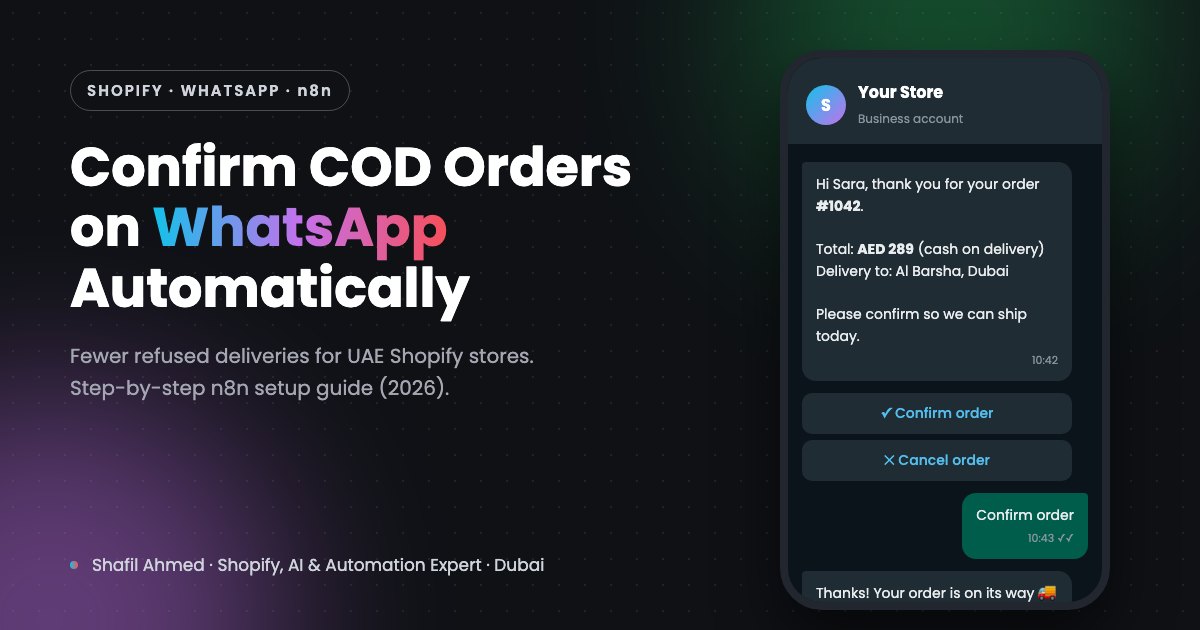
Cash on delivery is still a normal way to pay for online orders in the UAE. It helps conversion, but it also brings a problem every UAE Shopify merchant knows: orders that get refused at the door. Each one costs you shipping both ways, courier fees, and stock that sits in a van instead of on your shelf.
The simplest fix is to confirm every COD order before you ship it, and the I set this up for stores as a Shopify expert in the UAE, and this guide shows how it works. channel UAE customers actually reply on is WhatsApp, not email.
This guide shows how to automate that on Shopify: what the flow looks like, the tools you need, how to set it up, what it costs, and the mistakes I see most often when building these automations for UAE stores.
What a WhatsApp COD confirmation flow does
When a customer places a COD order on your Shopify store, the automation:
- Detects the new COD order the moment it's created.
- Sends a WhatsApp message with the order number, items, total in AED and delivery address, plus two buttons: Confirm order and Cancel order.
- Reads the customer's reply and updates the order in Shopify, for example
by adding a
cod-confirmedorcod-cancelledtag. - Sends one reminder if there's no reply after a few hours.
- Alerts your team about orders that are still unconfirmed, so someone can call before the courier pickup.
Your warehouse team then ships only orders tagged cod-confirmed. No one has to
copy phone numbers from the Shopify admin into WhatsApp by hand.
What you need
- A Shopify store with cash on delivery enabled as a manual payment method. Any Shopify plan works.
- The WhatsApp Business Platform (Cloud API) to send and receive messages. You need a Meta Business account and a phone number that isn't already registered on the normal WhatsApp app.
- An approved message template. Messages your business sends first must use a template approved by Meta.
- An automation tool to connect Shopify and WhatsApp. I use n8n (self-hosted or cloud). Make or a small custom Node.js service also work.
The free WhatsApp Business app on your phone can't be automated. To send messages triggered by Shopify orders you need the WhatsApp Business Platform (Cloud API), either directly from Meta or through a provider.
Step 1: Set up the WhatsApp Business Platform
- Create or verify your Meta Business account (business verification takes longest, so start early).
- In the Meta developer dashboard, create an app and add the WhatsApp product.
- Register the phone number you'll send from. A dedicated number for orders works best.
- Generate a permanent access token (through a system user), not the temporary 24-hour token from the test screen. Many automations break after a day because of this.
Step 2: Create the confirmation template
Business-initiated WhatsApp messages need a pre-approved template. Order confirmation fits the utility category, which is cheaper than marketing. Keep it factual. Approval is much faster when there's no promotional language.
An English template might look like this:
Hi {{1}}, thank you for your order {{2}} from {{3}}.

Total: AED {{4}} (cash on delivery)
Delivery to: {{5}}

Please confirm so we can ship your order today.

[Confirm order]   [Cancel order]
Add an Arabic version of the same template and pick the language from the storefront language the customer ordered in. A bilingual store that confirms in English only leaves part of its customers guessing.
Step 3: Trigger the automation from Shopify
In n8n, start the workflow with the Shopify Trigger node on the
orders/create event, or register a Shopify webhook pointing to an n8n Webhook
node.
Then filter to COD orders only. Shopify lists the payment method in
payment_gateway_names. For the default manual method it's
Cash on Delivery (COD), but check the exact name on one of your own test
orders, because merchants often rename it.
If you use a raw webhook instead of the built-in trigger, verify the
X-Shopify-Hmac-Sha256 header before trusting the request. Otherwise anyone who
finds the URL can send fake orders into your workflow.
Step 4: Clean the phone number
This is where most COD automations quietly fail. UAE customers type their number
in every possible format: 050 123 4567, 0501234567, +971501234567,
971 50 123 4567. WhatsApp needs a full international number.
A small Code node in n8n normalises it:
// Normalise UAE mobile numbers to international format (9715XXXXXXXX)
const raw = ($json.shipping_address?.phone || $json.phone || "").replace(/\D/g, "");

let phone = raw;
if (phone.startsWith("00")) phone = phone.slice(2);          // 00971... → 971...
if (phone.startsWith("0") && phone.length === 10) phone = "971" + phone.slice(1); // 05X... → 9715X...
if (phone.length === 9 && phone.startsWith("5")) phone = "971" + phone;          // 5X... → 9715X...

return { json: { ...$json, whatsapp_phone: phone, valid_phone: /^9715\d{8}$/.test(phone) } };
Orders with an invalid number should skip WhatsApp and go straight to your team for a phone call. If you ship across the GCC, extend the rules for Saudi, Oman and the other country codes you serve.
Step 5: Send the message and handle the reply
- Use the WhatsApp Business Cloud node (or an HTTP Request node to the Cloud API) to send the template with the customer name, order number, total and address.
- Tag the order in Shopify as
cod-pendingso your team can see it's waiting. - Create a second workflow that starts with the WhatsApp Trigger node. It fires when the customer taps a button.
- Match the reply to the order (store the WhatsApp message ID or order ID when
you send), then:
- Confirm → replace
cod-pendingwithcod-confirmedand send a short "Thanks, your order is on its way" reply. - Cancel → tag
cod-cancelled, then cancel the order through the Shopify Admin API, or notify your team to cancel it manually if you'd rather keep a human in the loop.
- Confirm → replace
Step 6: Reminders and team alerts
Add a scheduled workflow that runs every hour:
- Orders still
cod-pendingafter 3–4 hours get one reminder message. - Orders still unconfirmed before your courier cut-off time go to your team in Slack, email or a WhatsApp group, with the customer's number ready to call.
One reminder is enough. Repeated messages annoy customers and can get your number flagged.
What it costs
There are three parts to the cost:
- WhatsApp messages. Meta charges per delivered template message, and the price depends on the category and the customer's country. Utility messages like order confirmations cost less than marketing ones. Check Meta's current pricing for the UAE before you budget.
- The automation tool. Self-hosted n8n has no per-execution fee, so the cost stays flat as order volume grows. Hosted tools with per-task pricing get more expensive the more orders you have.
- Setup. A one-time build and test of the workflows, templates and Shopify tagging. For full store budgets, see my Shopify pricing in UAE breakdown.
For most stores the comparison that matters is message cost against the cost of a single refused delivery. If confirmation prevents even a few refusals a month, it usually pays for itself.
Common mistakes to avoid
- Using the temporary access token. It expires after 24 hours and the automation silently stops.
- No phone cleanup. Messages fail for every order typed in local format.
- Promotional wording in the template. It slows approval or pushes the template into the more expensive marketing category.
- Shipping on "no reply". Treat silence as unconfirmed, not confirmed.
- No error alerts. If WhatsApp or Shopify returns an error, someone on your team needs to know the same day. n8n's error workflow handles this.
- Ignoring consent and privacy. Tell customers at checkout that you'll contact them on WhatsApp about their order, and keep only the data you need. The UAE's Personal Data Protection Law (Federal Decree-Law No. 45 of 2021) applies to how you handle customer data.
Going further with AI
Once the basic flow works, AI can handle the replies that aren't a button tap, such as "Can you deliver tomorrow evening instead?" or "Change my address to Al Barsha". A language model can understand the message in English or Arabic, update the order note or delivery time, and pass anything unclear to a human. The same setup can send delivery updates, collect reviews after delivery, and recover abandoned carts.
If you use Odoo for stock and invoicing, the confirmed status can sync there too. See Odoo ERP integration.
Want this set up on your store?
I build Shopify, n8n and WhatsApp automations for stores in Dubai and across the UAE, including COD confirmation, delivery updates and AI customer replies. See my AI & automation services in the UAE, or the Shopify development services in Dubai page if you need the store itself built or improved.
Frequently asked questions
Not natively. Shopify sends email and SMS notifications, but WhatsApp needs either a WhatsApp app from the Shopify App Store or a custom automation (for example n8n) connected to the WhatsApp Business Platform. A custom automation gives you full control over templates, logic and what happens after the customer replies.
There are three parts: Meta's per-message fee for the approved template (order confirmation usually fits the cheaper utility category), the cost of your automation tool (self-hosted n8n has no per-task fee), and a one-time setup cost. Check Meta's current WhatsApp pricing page for UAE rates, because they change.
For automation you need the WhatsApp Business Platform (Cloud API). The free WhatsApp Business app on your phone cannot be triggered by Shopify orders or send template messages automatically.
Send one reminder after a few hours, then pass the order to your team for a phone call or cancel it according to your policy. Don't ship unconfirmed COD orders by default, because unconfirmed orders are the ones most likely to be refused at the door.
Yes. Create separate English and Arabic versions of the template in WhatsApp Manager, and choose the language based on the customer's storefront language or the country code of their phone number.